Building Application Forms
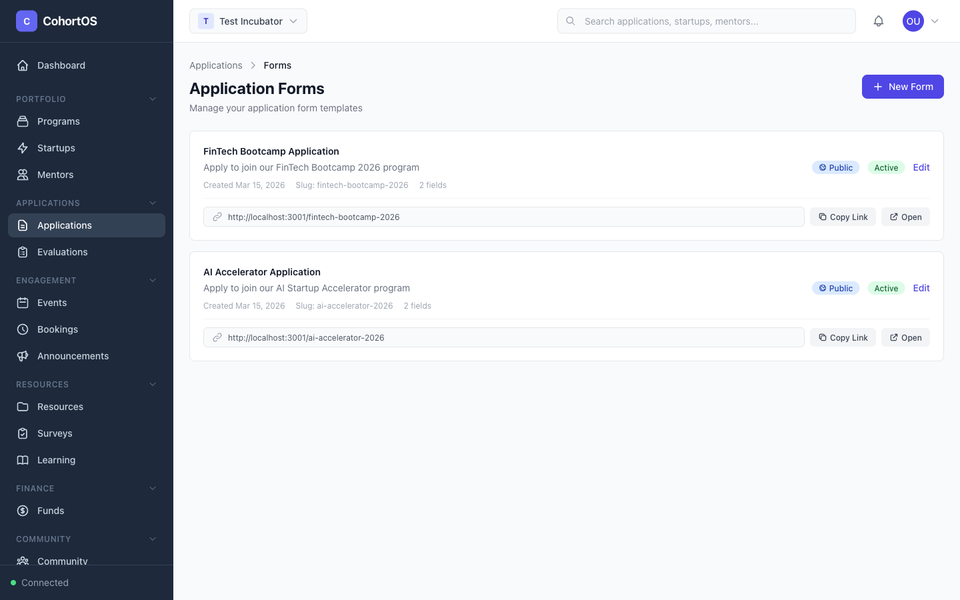
Cohortly lets you build custom application forms that you can share publicly. Startups fill them out, and you review submissions right from the platform.
Your Forms
Go to Applications → Manage Forms to see all your application forms.
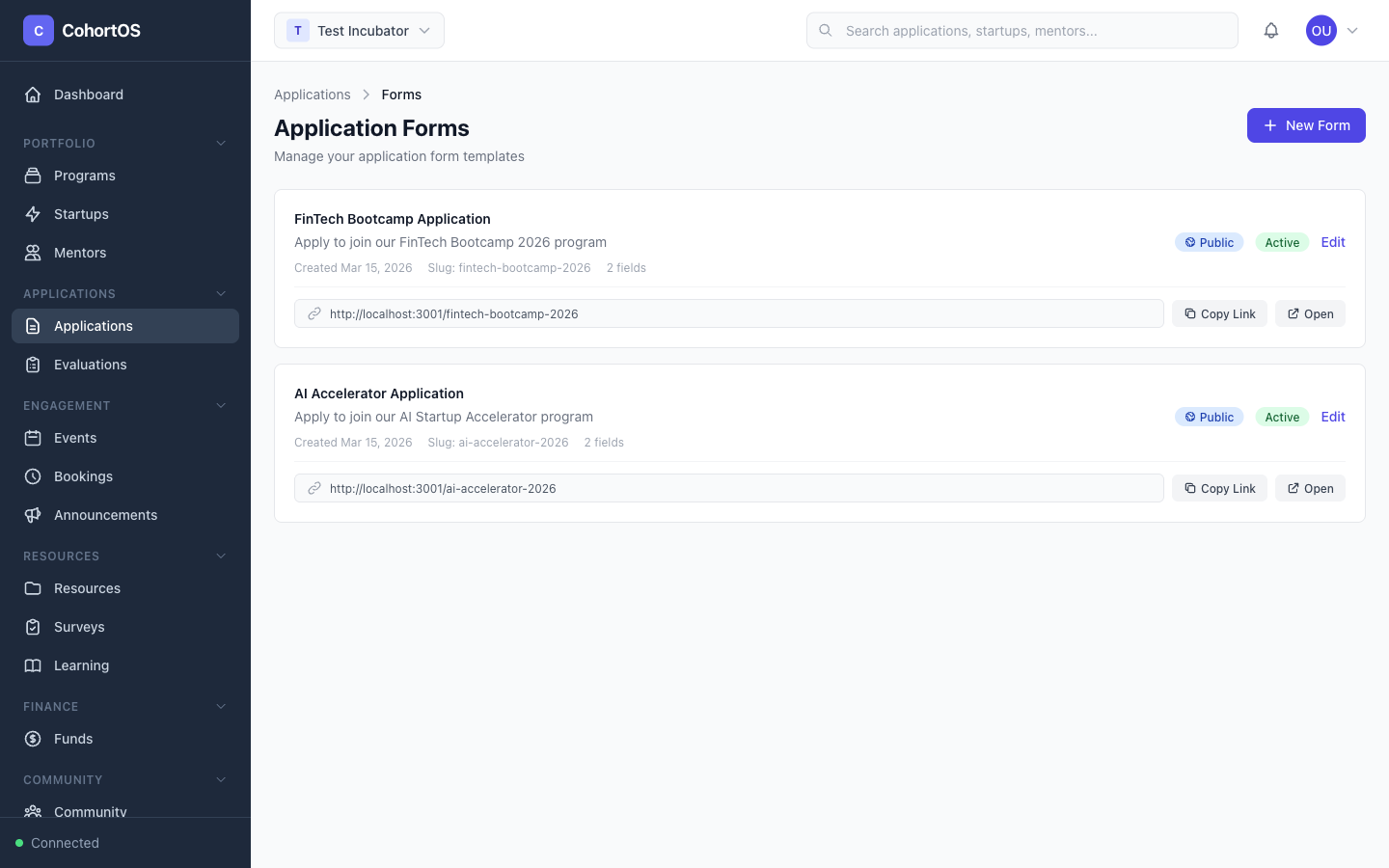
Each form card shows:
- Title and description
- Status badges — Whether it's Active (accepting submissions) and Public (accessible via link)
- Shareable link — A direct URL you can send to applicants
- Field count and creation date
Creating a New Form
Click "+ New Form" to open the form builder.
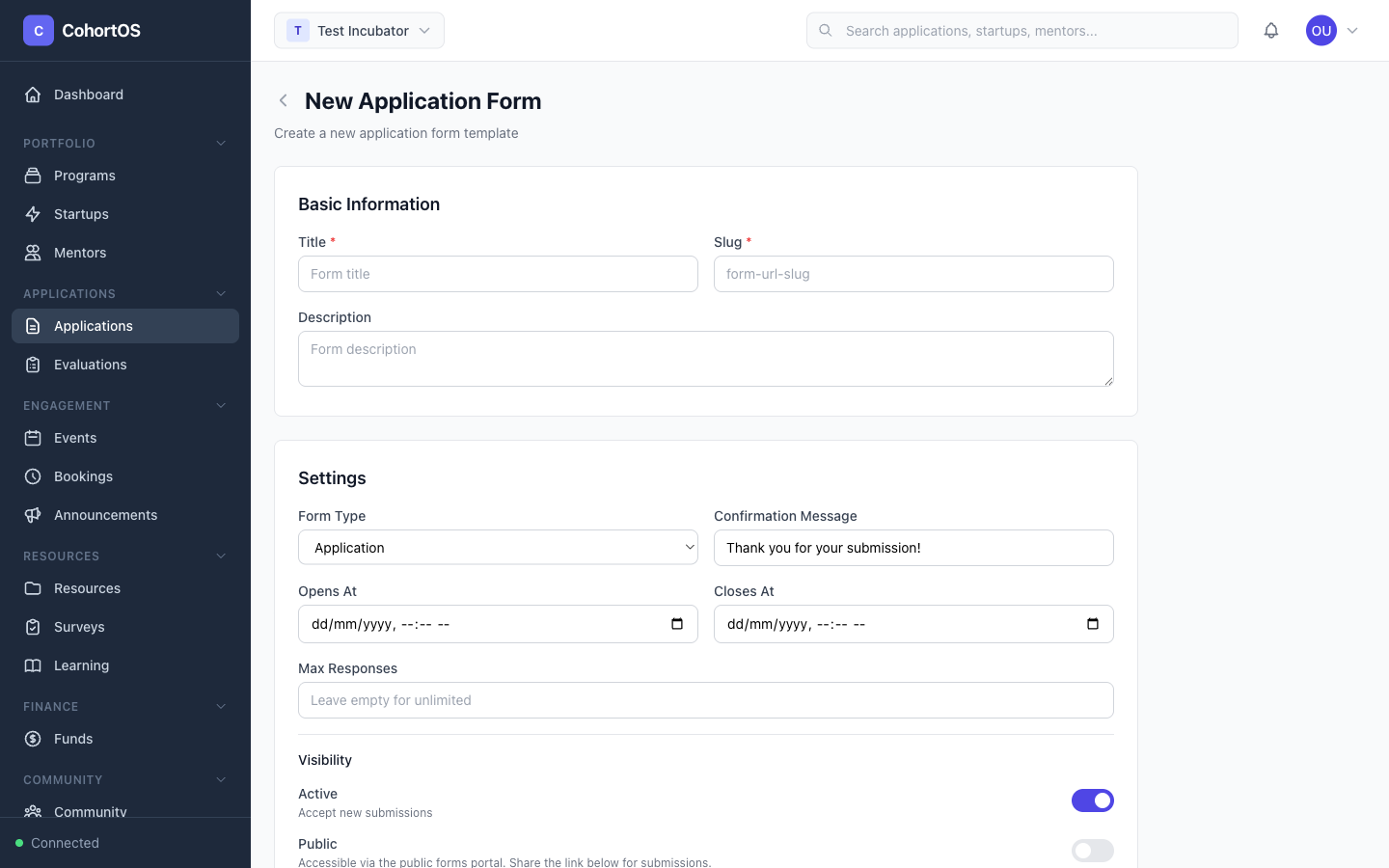
Basic Information
- Title — Name your form (e.g., "2026 Accelerator Application")
- Slug — The URL-friendly identifier (auto-generated from the title)
- Description — Brief description shown to applicants
- Form Type — Application, Survey, Feedback, Onboarding, or General
Adding Fields
Click "+ Add Field" to add questions to your form. Available field types:
- Text — Short text input
- Email — Email address
- Number — Numeric input
- Textarea — Long-form text
- Select — Dropdown menu
- Checkbox — Yes/no toggle
- Radio — Single choice from options
- Date — Date picker
- URL — Website link
- Phone — Phone number
- File Upload — Document attachments
You can mark fields as Required and add placeholder text. Drag fields to reorder them.
Visibility Settings
Under the Visibility section:
- Active — Toggle on to accept new submissions
- Public — Toggle on to make the form accessible via a public link
When both are enabled, you'll see a shareable form link that you can copy and send to potential applicants. They can fill out the form without needing to create an account.
Reviewing Applications
Navigate to Applications to see all submissions.
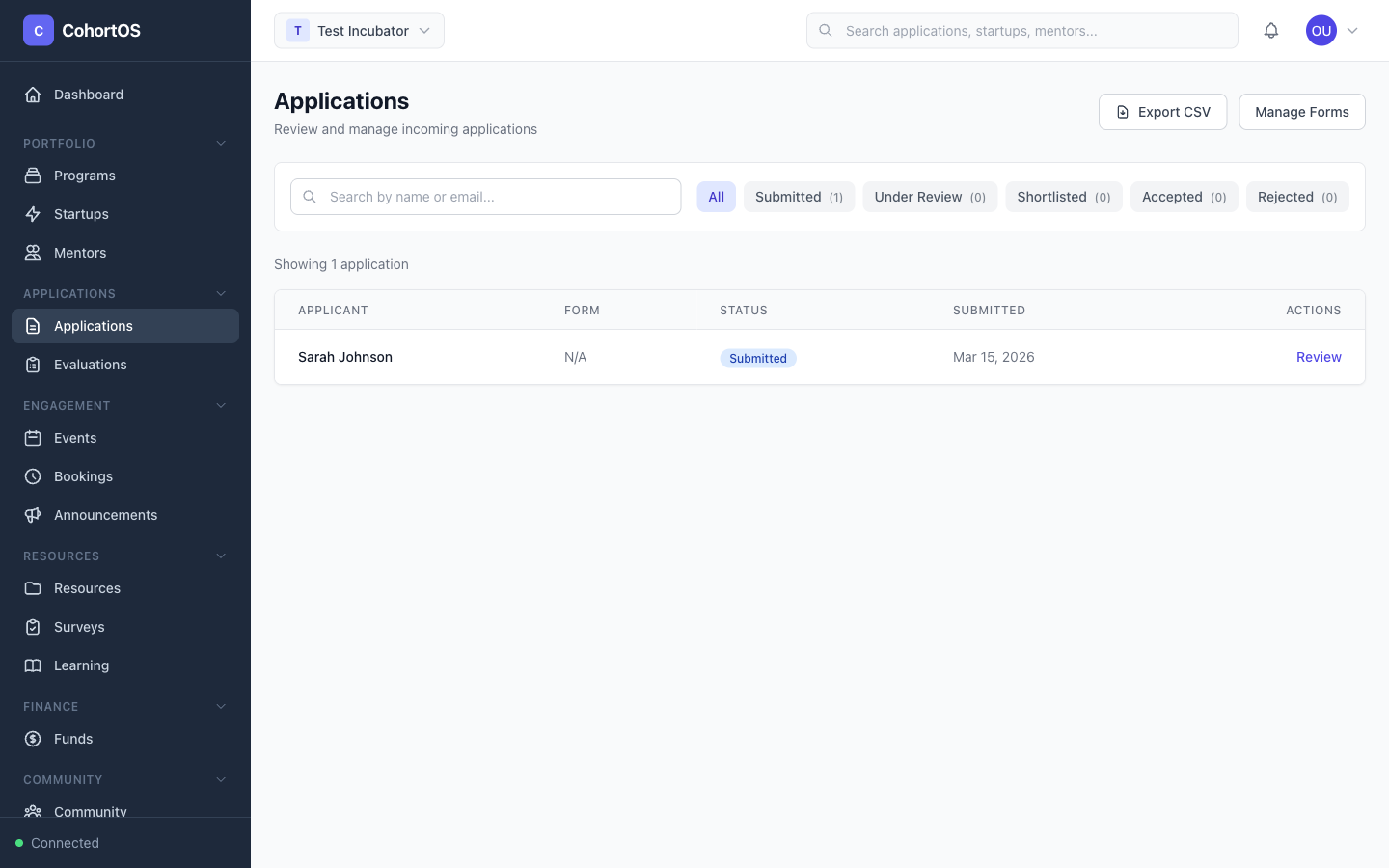
Applications go through a pipeline:
- Submitted — New applications land here
- Under Review — Your team is evaluating
- Shortlisted — Promising candidates
- Accepted — Approved to join your program
- Rejected — Not selected this time
Evaluations
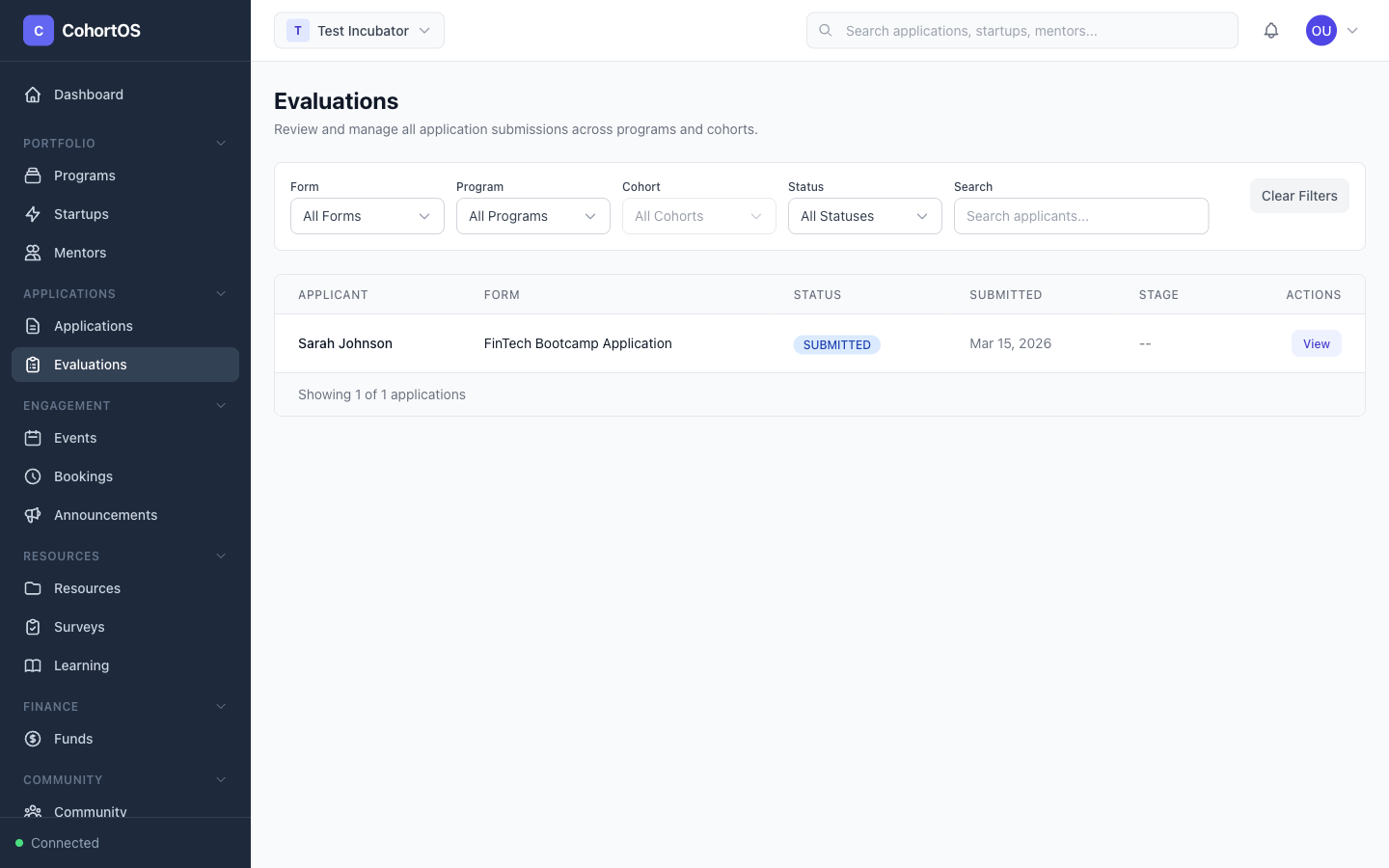
Use the Evaluations tab to score and compare applications side by side.