
Creating and Managing Events
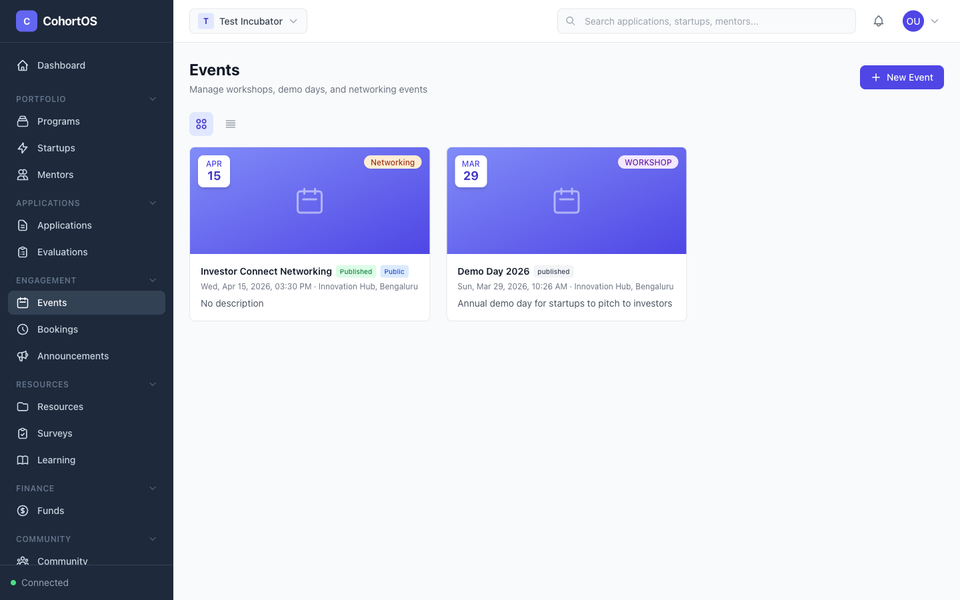
Events are a core part of any accelerator program — from workshops and seminars to demo days and networking sessions. Cohortly makes it easy to create, manage, and publish events.
Events Overview
Navigate to Engagement → Events to see all your events.
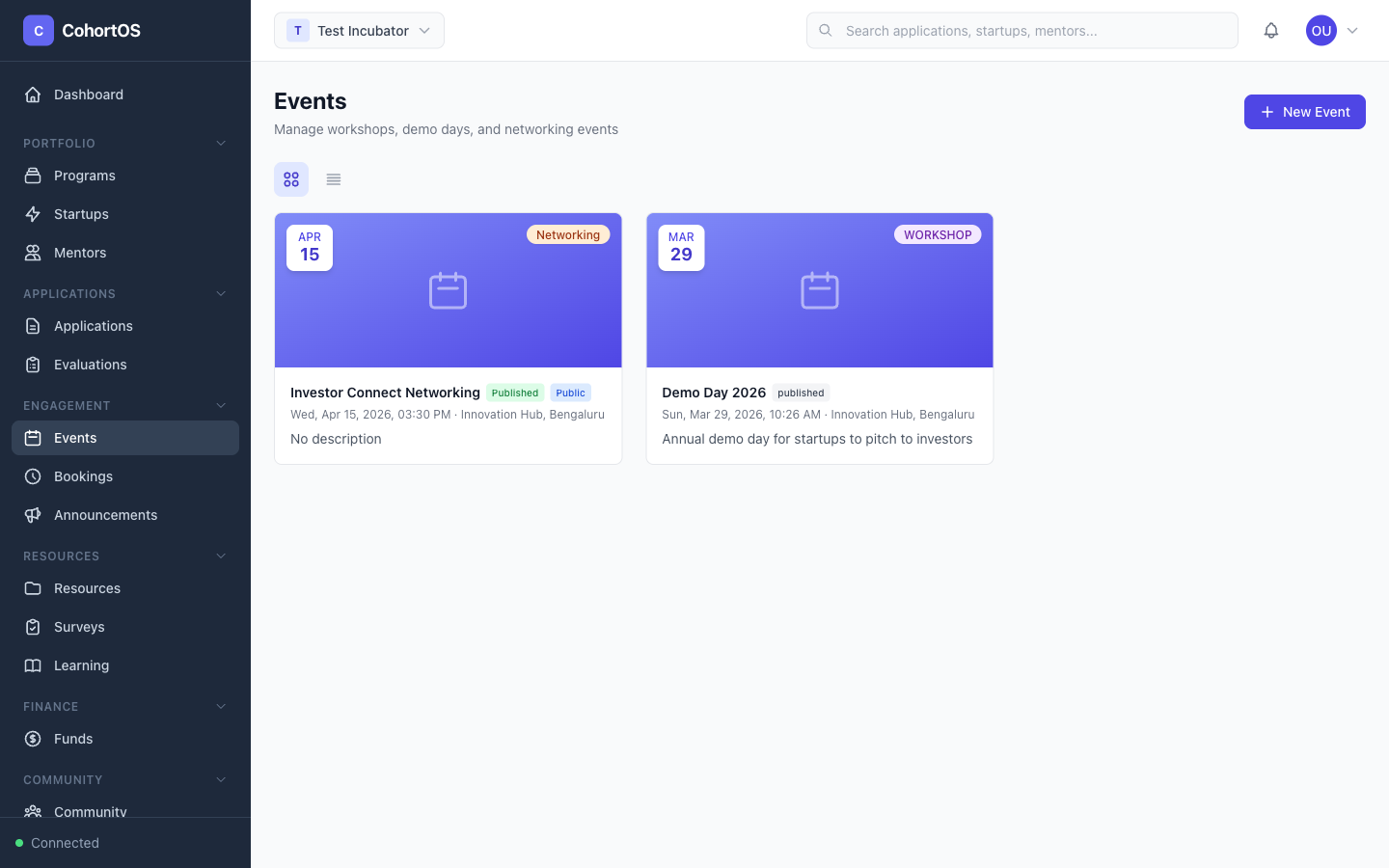
Events are displayed as cards showing:
- Cover image or a colorful placeholder
- Date badge — Month and day at a glance
- Event type — Workshop, Demo Day, Networking, Webinar, etc.
- Status — Draft, Published, Ongoing, Completed, or Cancelled
- Public badge — Shows if the event is visible on the public portal
You can switch between card view and list view using the toggle buttons.
Creating an Event
Click "+ New Event" to create an event.
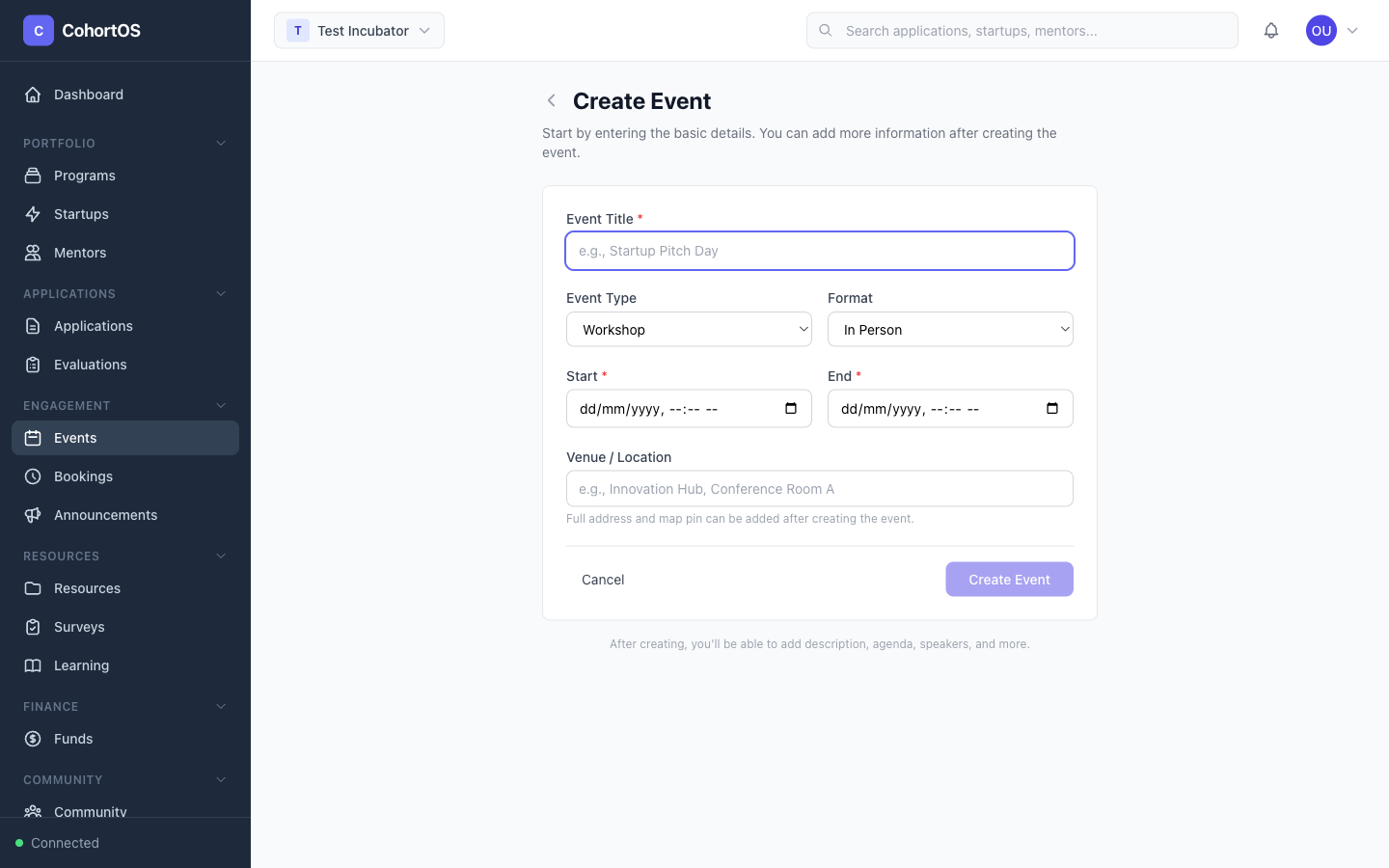
Event Details
- Title — Name your event
- Event Type — Workshop, Seminar, Webinar, Demo Day, Networking, etc.
- Format — In Person, Virtual, or Hybrid
- Start and End Date/Time
- Cover Image — Upload a banner image
Location
For in-person or hybrid events:
- Interactive map — Click to pin a location or search by address
- Venue details — Name, address, city, state, country
For virtual events:
- Platform — Zoom, Google Meet, etc.
- Meeting Link — The join URL
Status & Visibility
- Status — Start as "Draft" and change to "Published" when ready
- Public — Toggle on to make the event visible on your public portal
Important: An event must be both Published and Public to appear on the public events page.
Event Detail View
Click on any event to see its full details, manage speakers, agenda, and registrations.
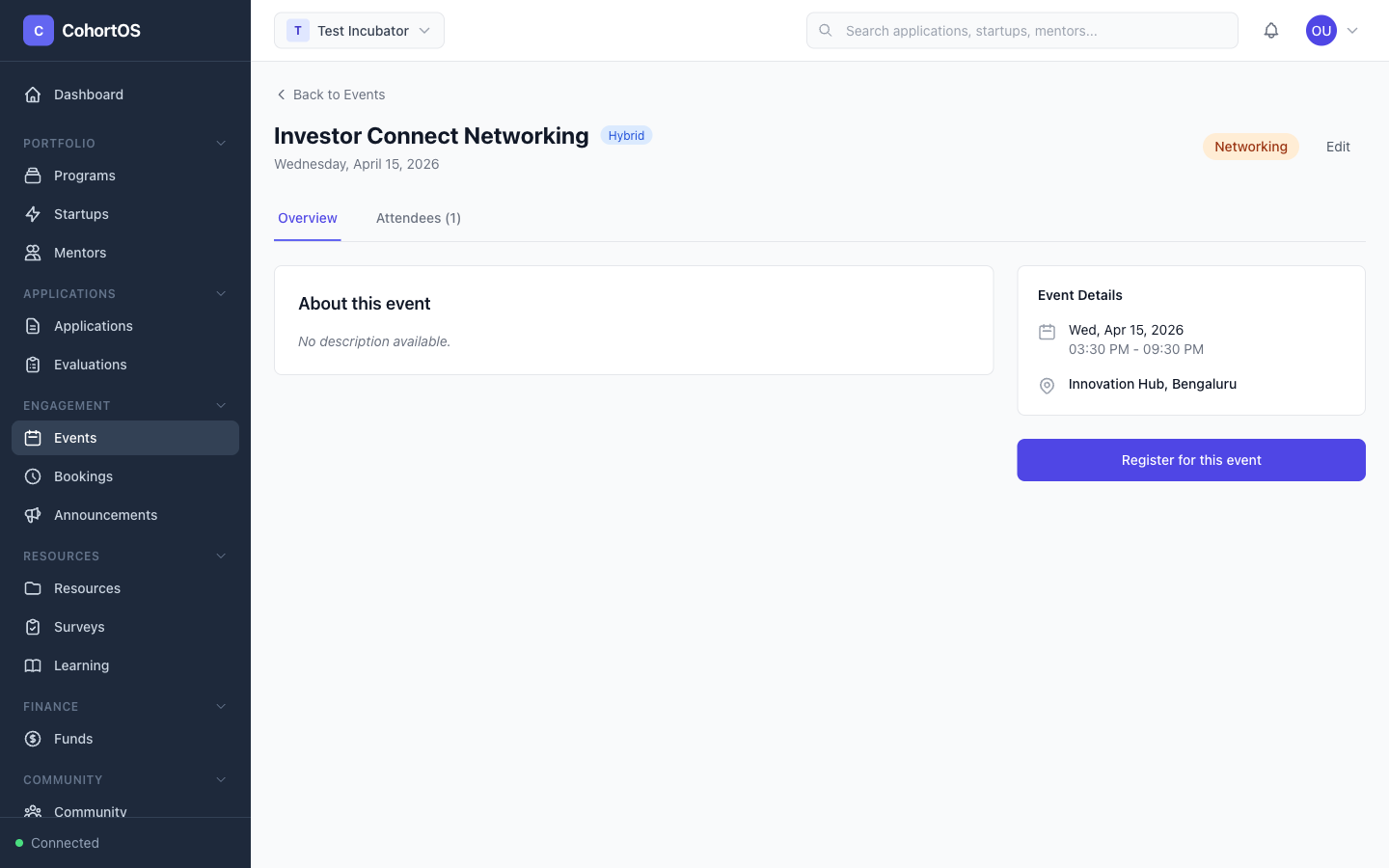
From the event detail page, you can:
- Edit all event details across tabs: Details, Description, Agenda, Speakers, Settings
- View and manage registrations
- Add speakers with their bios and photos
- Create a multi-session agenda