
Understanding Roles & Permissions
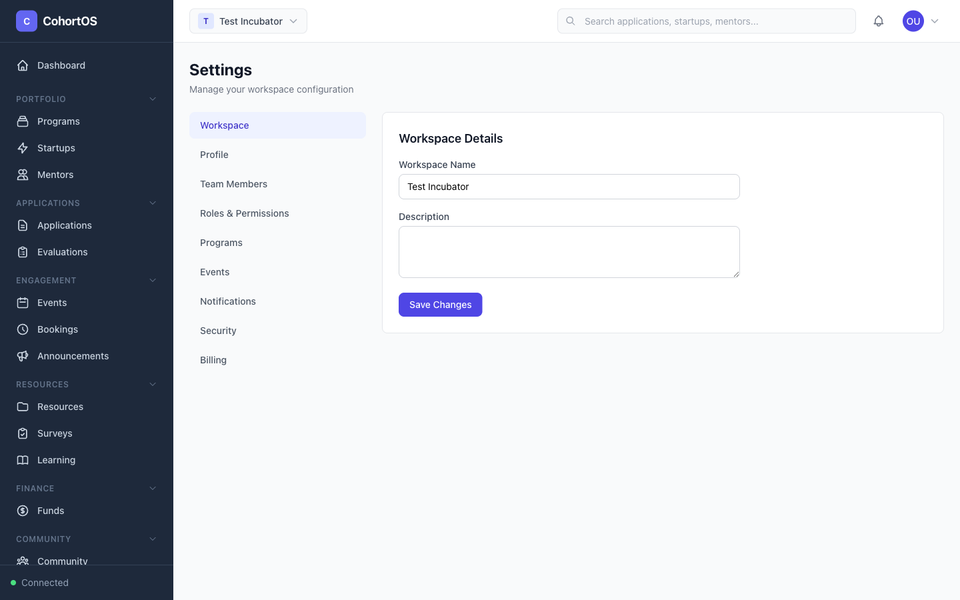
Cohortly uses a role-based access control (RBAC) system that lets you control exactly what each team member can see and do.
Built-in Roles
Cohortly comes with these default roles:
| Role | Description | Access Level |
|---|---|---|
| Owner | Full control over the workspace | Everything — including billing and deletion |
| Administrator | Manage all features | Everything except billing and ownership transfer |
| Program Manager | Run day-to-day operations | Programs, cohorts, startups, applications, events, mentors |
| Reviewer | Evaluate applications | View applications and submit evaluations |
| Mentor | Mentor-specific access | View assigned startups, manage sessions |
| Viewer | Read-only access | View most sections, no editing |
Custom Roles
Need something more specific? Create custom roles:
- Go to Settings → Roles
- Click "Create Role"
- Name the role and select permissions
Permission Categories
Permissions are organized by module:
- Programs — View, create, update, delete programs and cohorts
- Startups — View, create, update, delete startups
- Mentors — View, invite, manage mentors
- Applications — View, create forms, review, evaluate
- Events — View, create, manage events
- Communications — View, send announcements
- Documents — View, upload, manage files
- Settings — Manage workspace, roles, members
- ...and more (17 resource categories with 146 individual permissions)
How Permissions Work
- Permissions control both sidebar visibility (what menu items you see) and page access (what you can navigate to)
- If a user tries to access a page they don't have permission for, they'll see an "Access Denied" message
- API calls are also permission-checked — even if someone manipulates the URL, the backend enforces access